Peach Refunds – Admin Guide
Peach Refunds – Admin Guide
This guide provides a step-by-step reference for administrators managing automatic refunds through the MCA platform. It covers processing payment refunds, handling various refund types, and configuring refund policies.
Pre-Requisites
- MCA Access: You must be logged into an MCA account with administrator privileges.
- Peach Refunds: Must be enabled for your club.
Step-by-Step Refund Process
Step 1: Access the Refund Configuration Screen
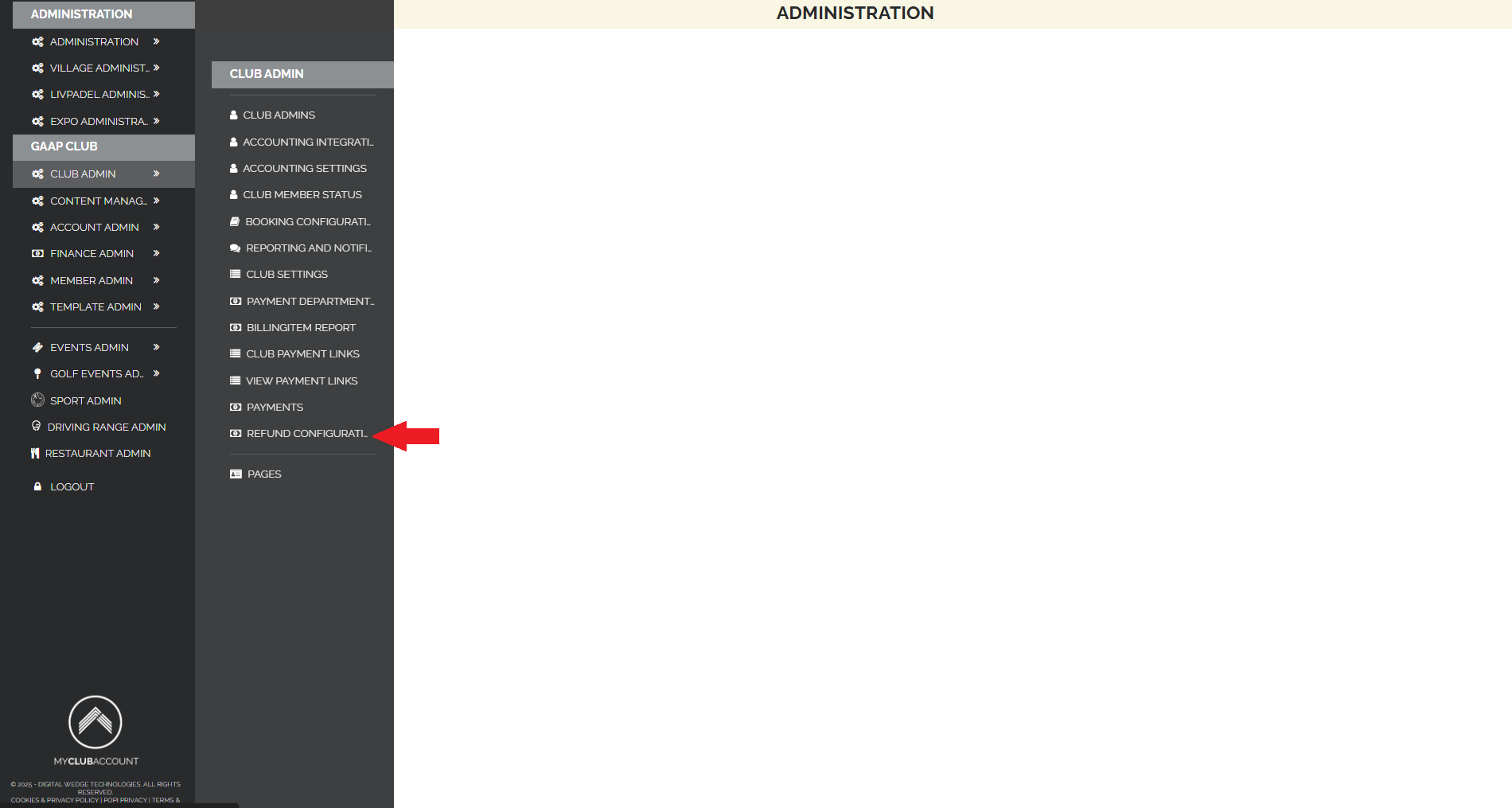
From the MCA administration navigation bar, go to Club Admin → Refund Configuration to manage the club’s refund rules and settings.
Step 2: View or Create Refund Rules
On the Refund Configuration screen, you can view existing refund rules or click “Create New Refund Rule” to add a new one.
If multiple refund rules apply to a booking, the system will use the rule with the longest duration before the booking that still falls within the remaining time until the booking.

Step 3: Add a New Refund Rule
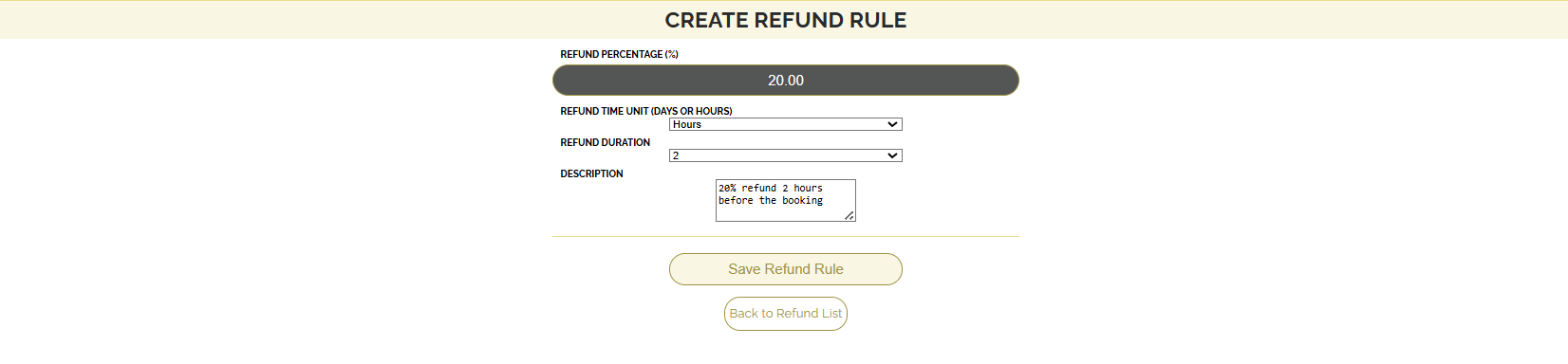
This screen allows you to define new refund rules by specifying the following:
- Refund % – The percentage of the payment to be refunded.
- Duration – The time threshold before the booking when the rule becomes applicable.
- Time Unit – The unit for the duration (e.g., Hours or Days).
- Description – Optional text to help identify or explain the rule.
Step 4: Access the Payments Screen
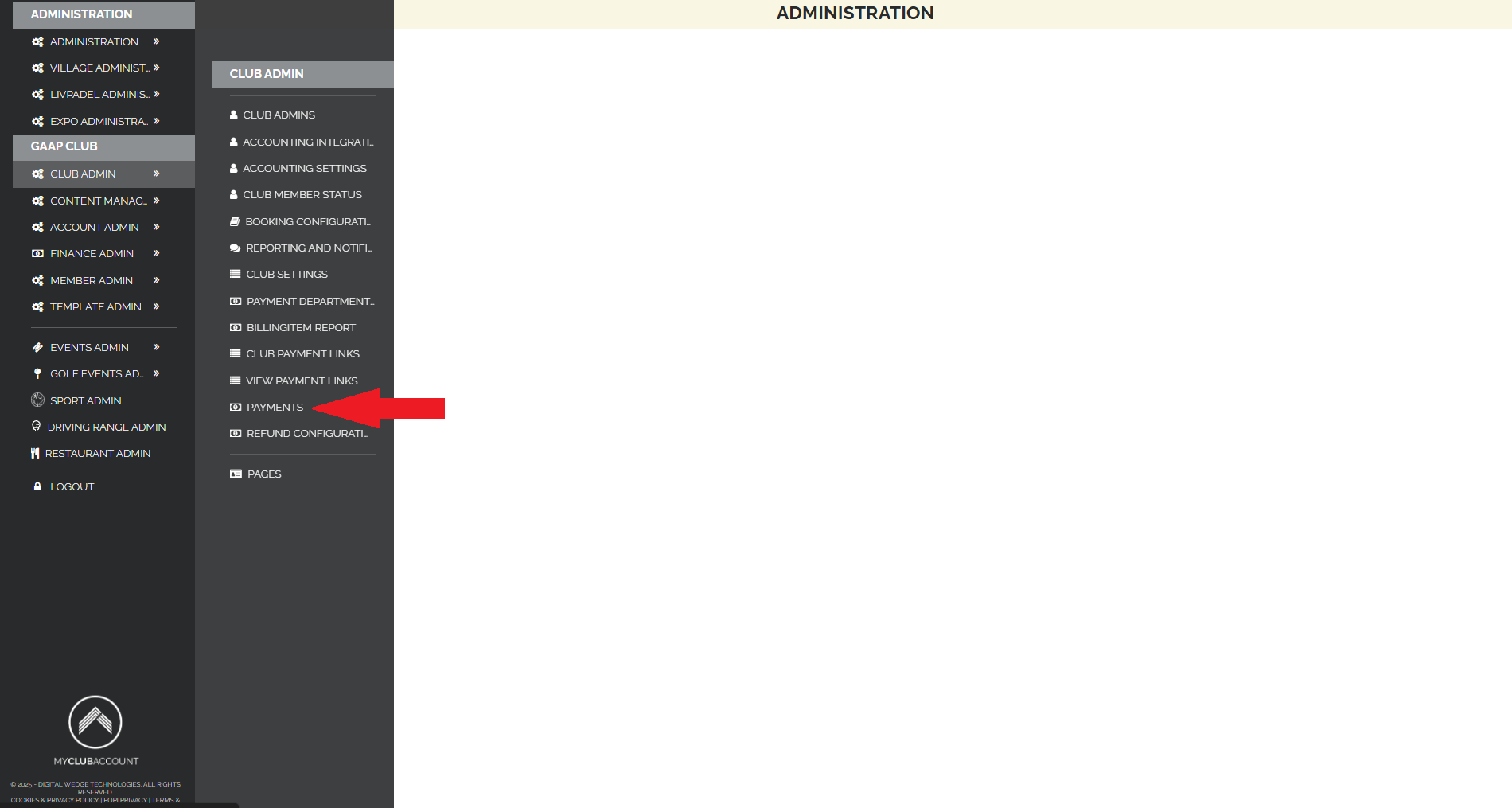
From the MCA administration navigation bar, go to the Club Admin → Payments screen to view transactions and manage refunds.
Step 5: Select the Refund Icon
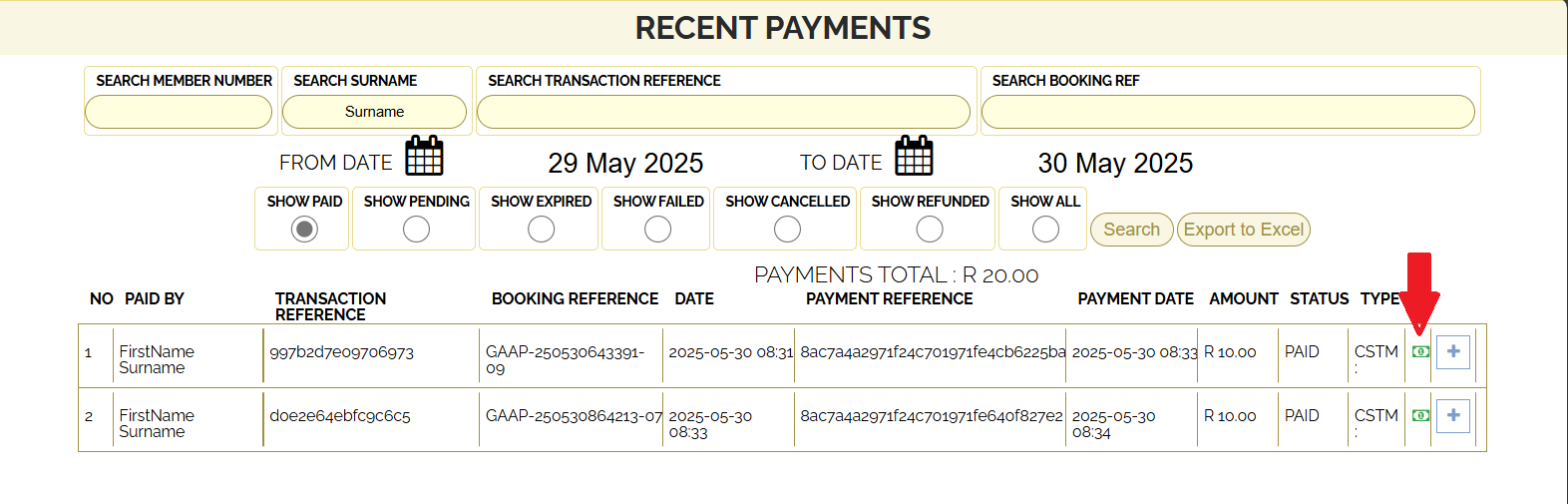
To initiate a refund for a transaction, click on the money icon (Font Awesome fa-money) next to the payment you want to refund.
Step 6: View Available Refund Options
A refund dialog will appear showing the available options based on:
- The user type (Member or Visitor)
- The payment method used
- The refund rule set by the club
The system will automatically determine and display the appropriate refund options based on these factors.
Visitor Bookings
For Visitor bookings, you can either:
- Refund the payment to the original payment method, or
- Cancel the booking without a refund, if it does not meet the club's refund policy.
Example 1: No Refund Rule Set by the Club (Visitor)
The available actions are:
-
A) Refundable payment method that allows partial refunds
→ Refund Bank is available.
The refund amount input will default to the full transaction amount.
This input is editable, allowing you to enter the amount to be refunded manually.
The refund reason field should be used to provide a comment explaining why the refund is being issued.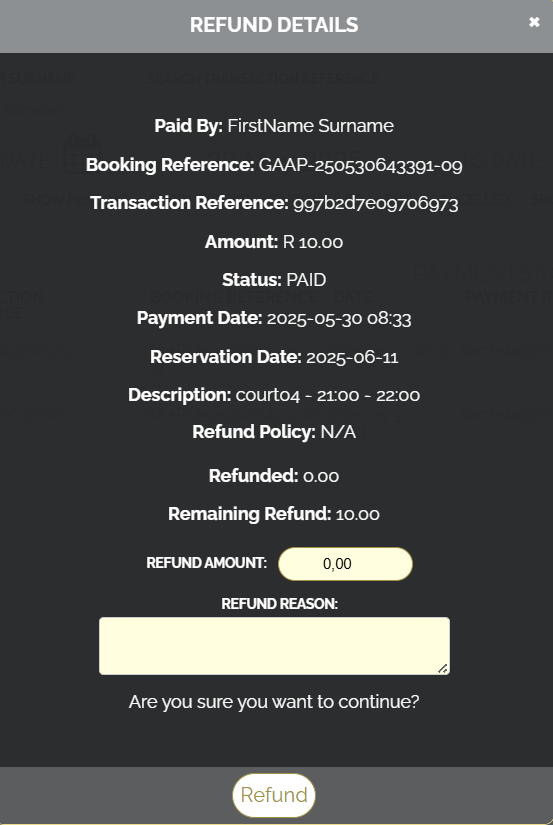
-
B) Refundable payment method that does not allow partial refunds
→ Refund Bank is available.
The refund amount input will default to the full transaction amount, and cannot be changed, as only full refunds are allowed.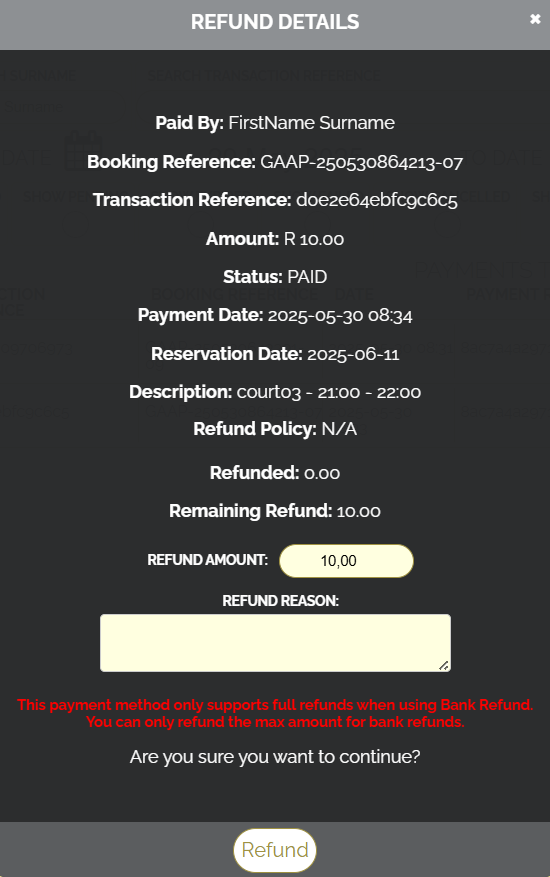
-
C) Non-refundable payment method that does not allow partial refunds
→ Cancel Booking only. -
D) Non-refundable payment method that allows partial refunds
→ Cancel Booking only.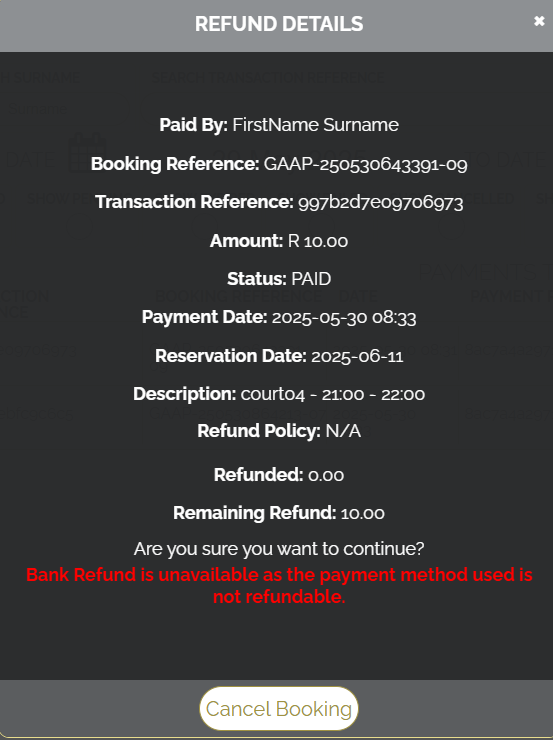
Example 2: 20% Refund Rule Set by the Club (Visitor)
The available actions are:
-
A) Refundable payment method that allows partial refunds
→ Refund Bank is available.
The refund amount input will default to 20% of the transaction amount (as per the refund rule).
This input is editable, allowing you to refund the amount needed.
The refund reason field should be used to comment on why the refund is being issued.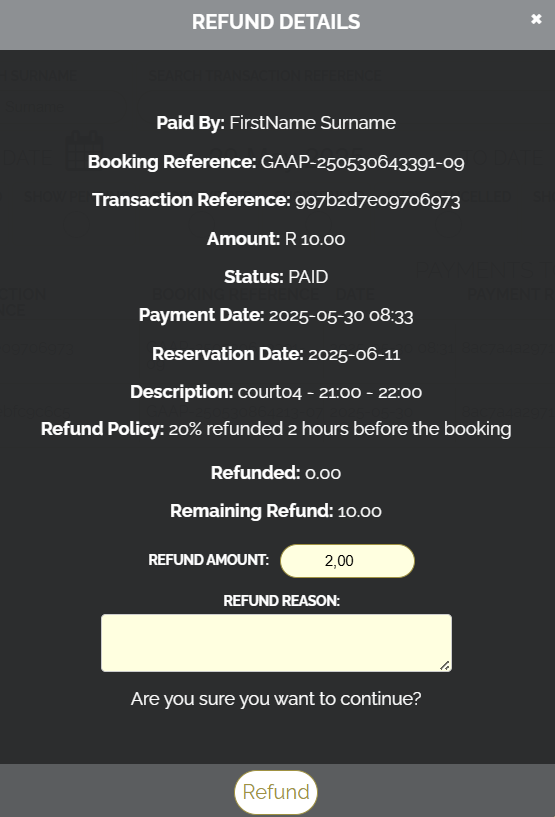
-
B) Refundable payment method that does not allow partial refunds
→ Refund Bank is available.
The refund amount input will default to the full transaction amount, since only full refunds are allowed.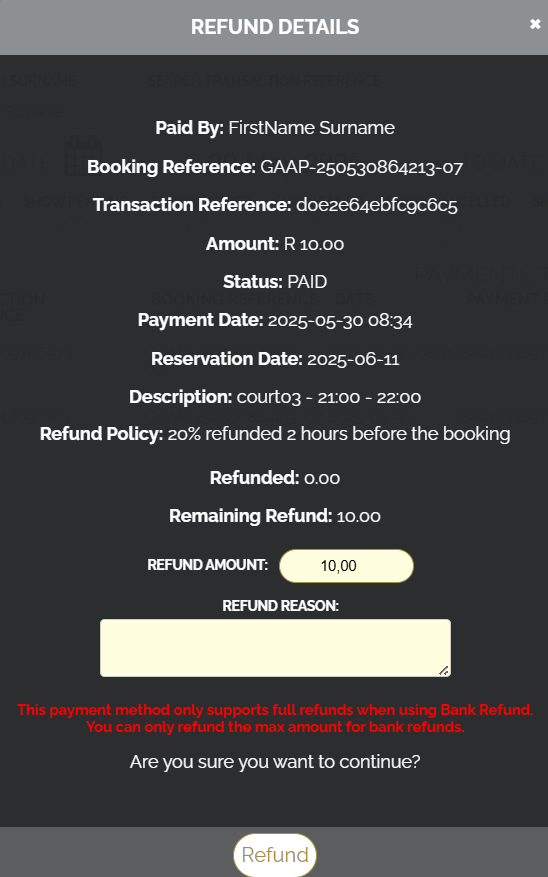
-
C) Non-refundable payment method that does not allow partial refunds
→ Cancel Booking only. -
D) Non-refundable payment method that allows partial refunds
→ Cancel Booking only.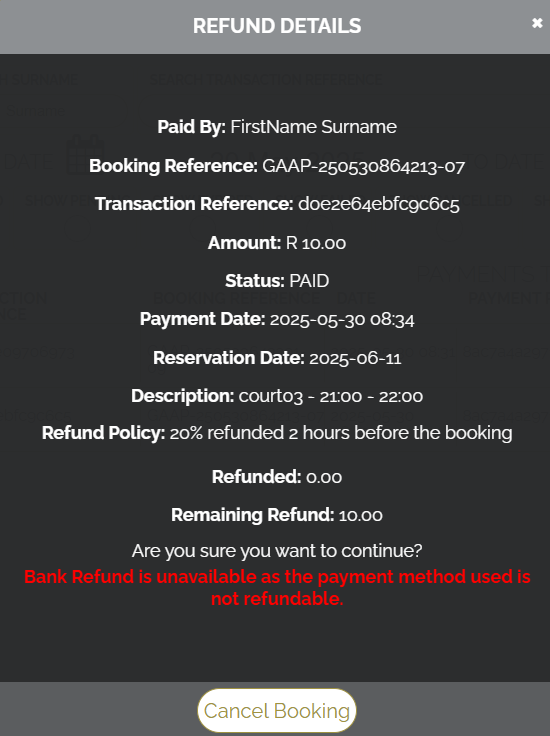
Example 3: 100% Refund Rule Set by the Club (Visitor)
The available actions are:
-
A) Refundable payment method that allows partial refunds
→ Refund Bank is available.
The refund amount input will default to 100% of the transaction amount (as per the refund rule).
This input is editable, allowing you to refund the amount needed.
The refund reason field should be used to comment on why the refund is being issued.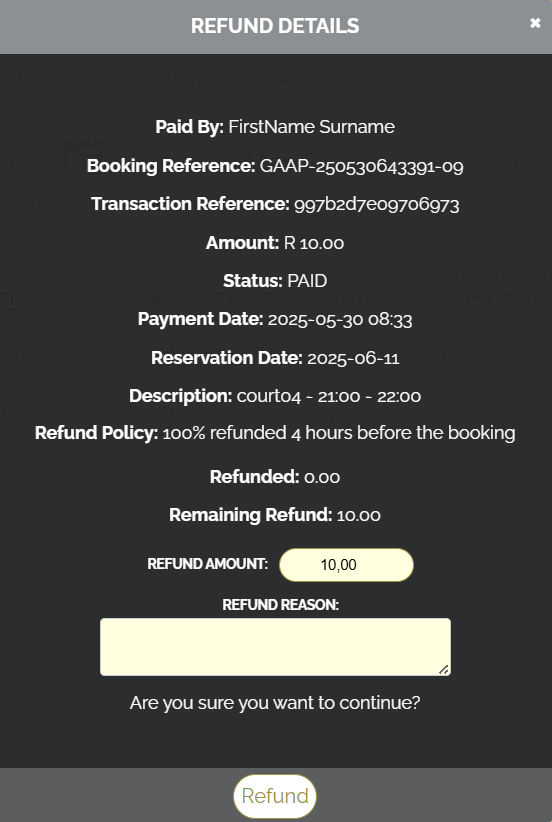
-
B) Refundable payment method that does not allow partial refunds
→ Refund Bank is available.
The refund amount input will default to the full transaction amount, and cannot be changed, as only full refunds are allowed.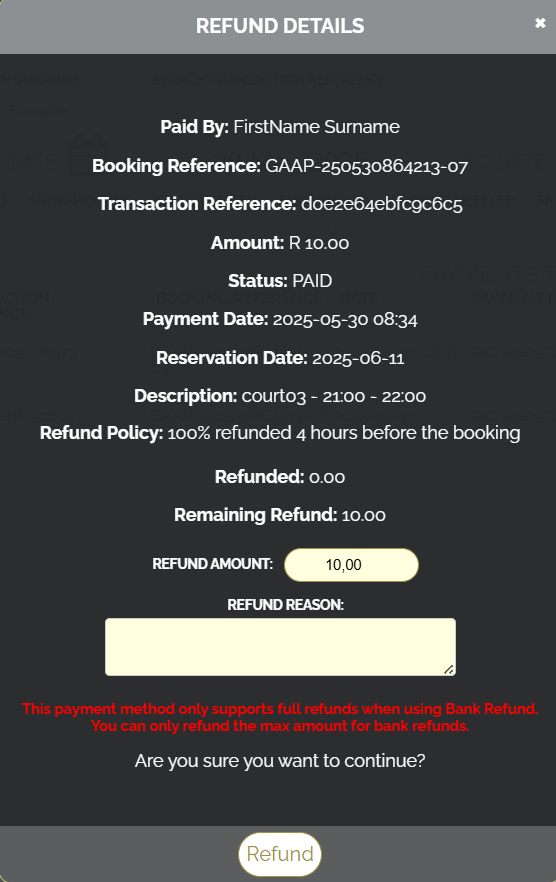
-
C) Non-refundable payment method that does not allow partial refunds
→ Cancel Booking only. -
D) Non-refundable payment method that allows partial refunds
→ Cancel Booking only.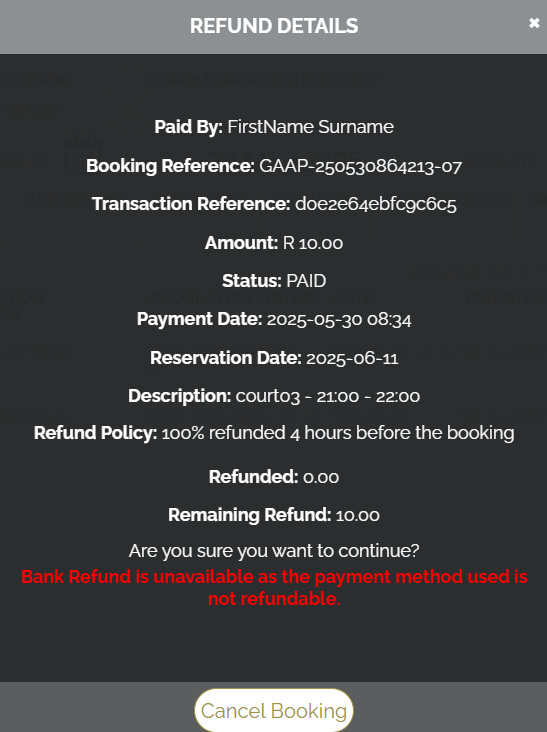
Member Bookings
For Member bookings, you can:
- Refund the payment to the ClubCard
- Refund to the original payment method (if allowed)
- Or Cancel the booking without a refund, if it does not meet the club's refund policy
Example 1: No Refund Rule Set by the Club (Member)
The available actions are:
-
A) Refundable payment method that allows partial refunds
→ Refund Bank and Refund ClubCard are available.
The refund amount input will default to the full transaction amount.
This input is editable, allowing you to refund the amount needed.
The refund reason field should be used to comment on why the refund is being issued.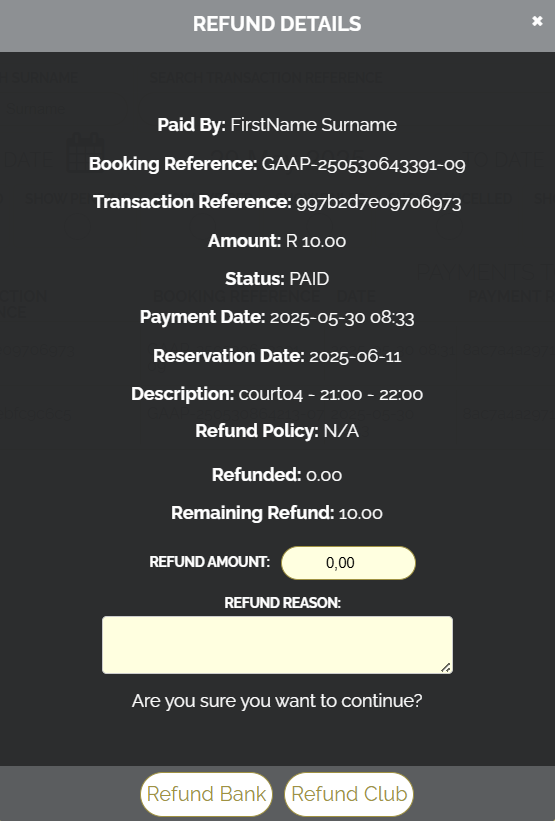
-
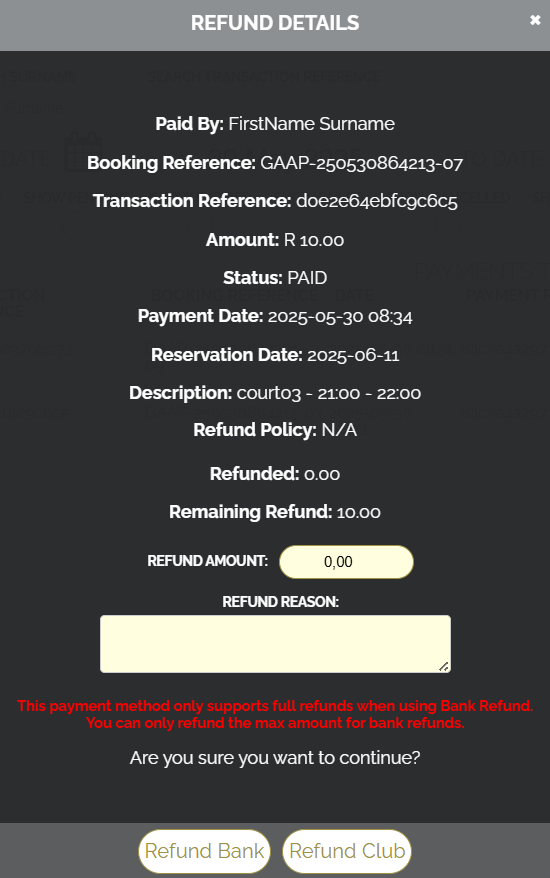
B) Refundable payment method that does not allow partial refunds
→ Refund Bank and Refund ClubCard are available.
The refund amount input will default to the full transaction amount.
This input is editable.- Refund ClubCard can refund any amount.
- Refund Bank allows only full refunds — if a partial amount is entered, an alert will be shown.
-
C) Non-refundable payment method that does not allow partial refunds
→ Refund ClubCard only. -
D) Non-refundable payment method that allows partial refunds
→ Refund ClubCard only.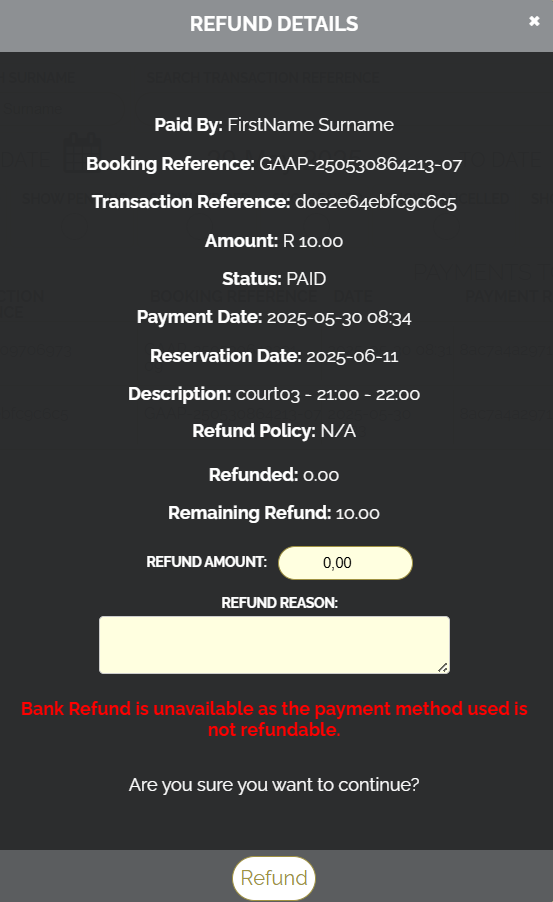
Example 2: 20% Refund Rule Set by the Club (Member)
The available actions are:
-
A) Refundable payment method that allows partial refunds
→ Refund Bank and Refund ClubCard are available.
The refund amount input will default to 20% of the transaction amount (as per the refund rule).
This input is editable, allowing you to refund the amount needed.
The refund reason field should be used to comment on why the refund is being issued.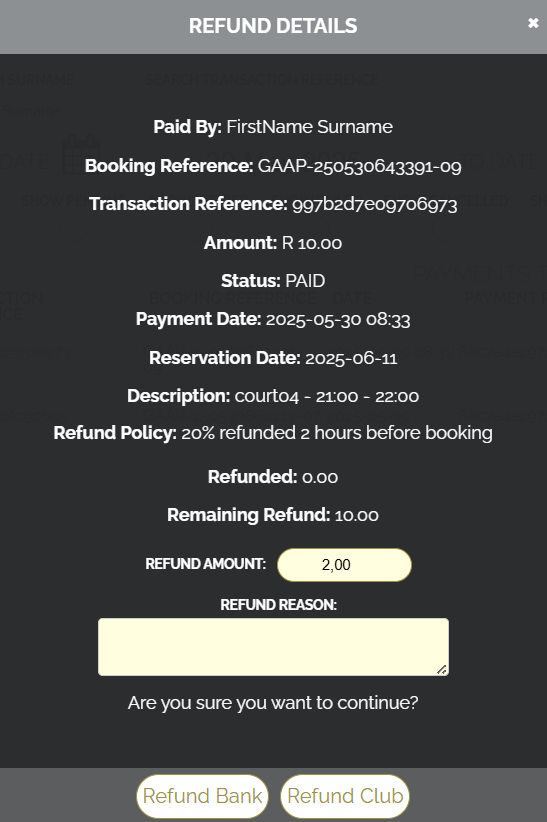
-
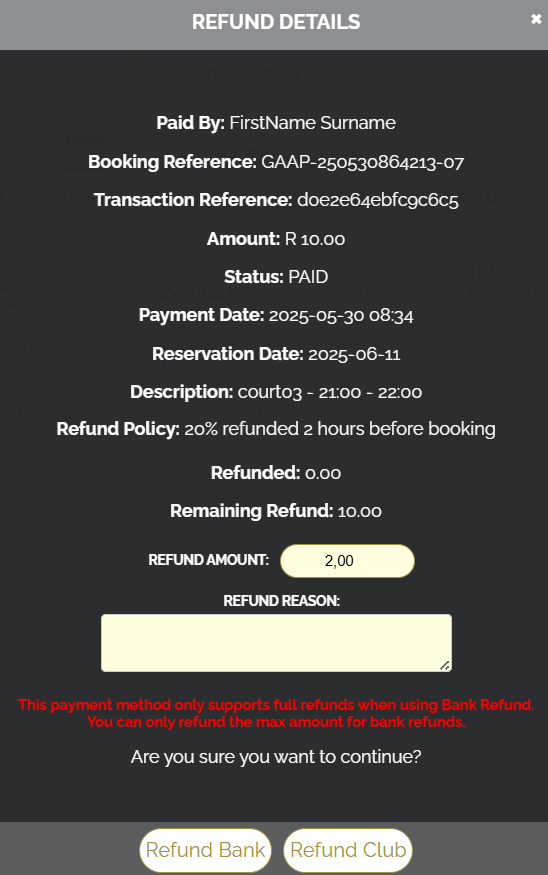
B) Refundable payment method that does not allow partial refunds
→ Refund Bank and Refund ClubCard are available.
The refund amount input will default to 20% of the transaction amount.
This input is editable.- Refund ClubCard can refund any amount.
- Refund Bank allows only full refunds — if a partial amount is entered, an alert will be shown.
-
C) Non-refundable payment method that does not allow partial refunds
→ Refund ClubCard only. -
D) Non-refundable payment method that allows partial refunds
→ Refund ClubCard only.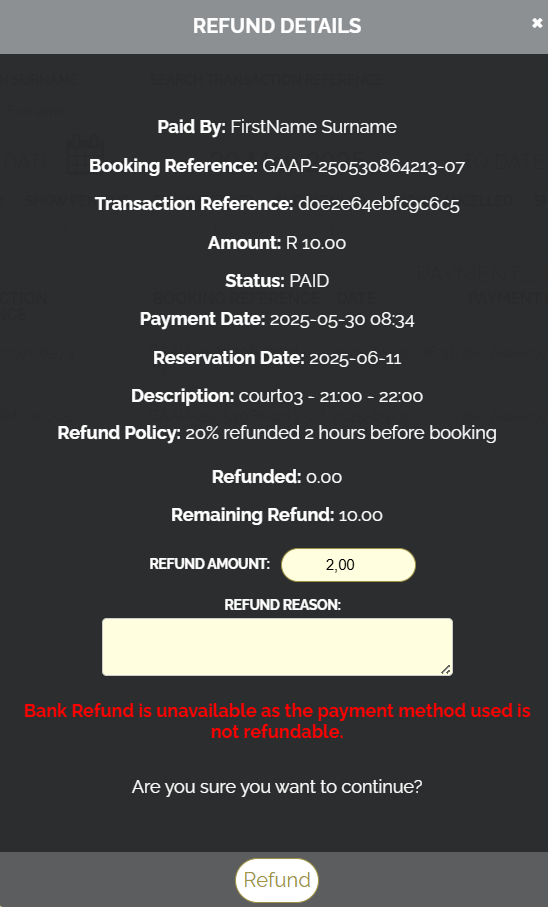
Example 3: 100% Refund Rule Set by the Club (Member)
The available actions are:
-
A) Refundable payment method that allows partial refunds
→ Refund Bank and Refund ClubCard are available.
The refund amount input will default to 100% of the transaction amount.
This input is editable, allowing you to refund the amount needed.
The refund reason field should be used to comment on why the refund is being issued.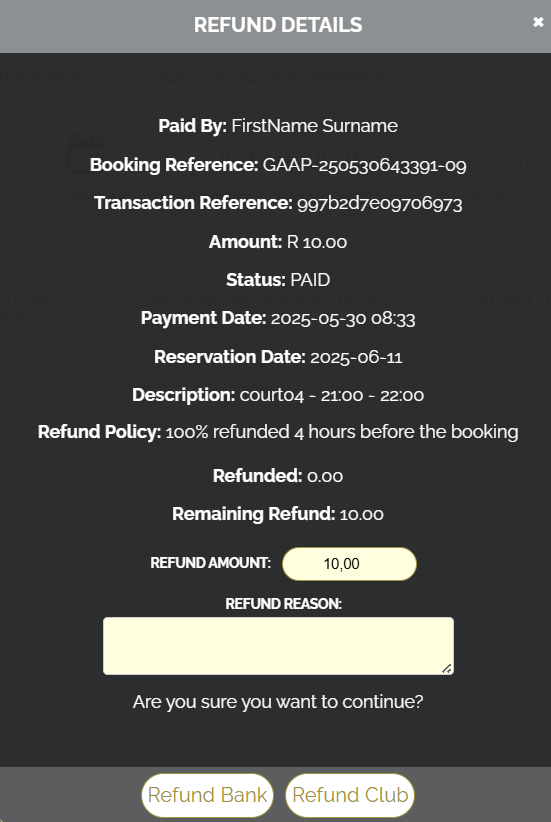
-
B) Refundable payment method that does not allow partial refunds
→ Refund Bank and Refund ClubCard are available.
The refund amount input will default to 100% of the transaction amount.
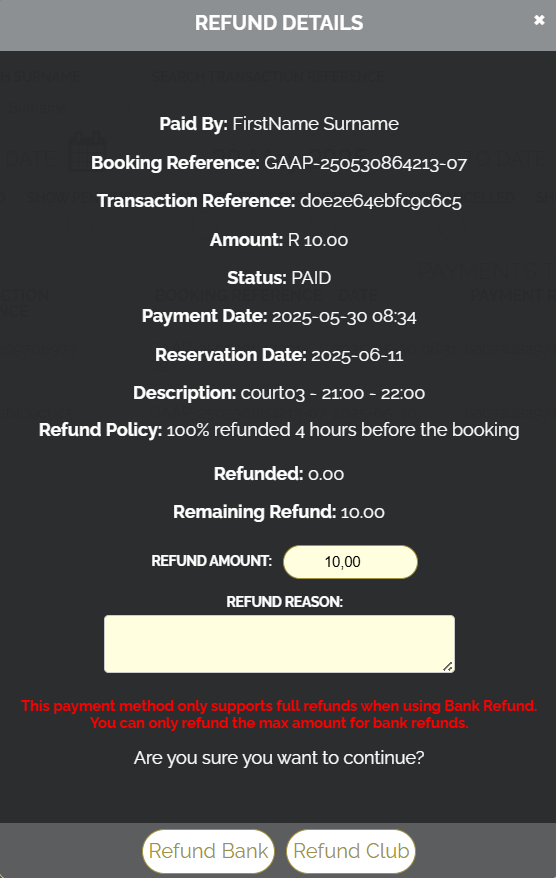
This input is editable.- Refund ClubCard can refund any amount.
- Refund Bank allows only full refunds — if a partial amount is entered, an alert will be shown.
-
C) Non-refundable payment method that does not allow partial refunds
→ Refund ClubCard only. -
D) Non-refundable payment method that allows partial refunds
→ Refund ClubCard only.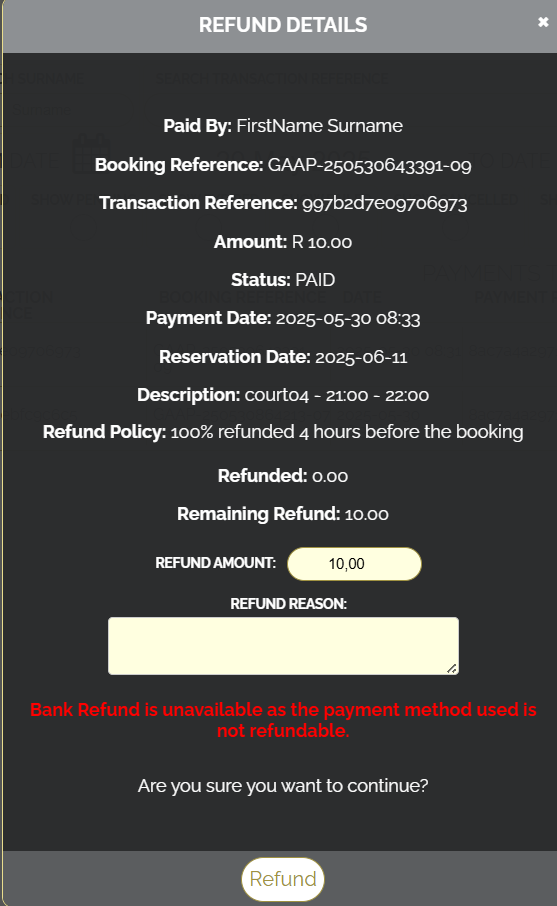
Additional Information
-
Refund processing time: Refunds typically take 3–14 days to reflect, depending on your bank or card provider.
-
Refund window: Refunds can only be performed within 6 months of the original transaction.
-
Scan to Pay refunds: These can only be processed within 6 hours of the original transaction and support full refunds only.
-
Email notifications:
- If a booking is cancelled, a cancellation confirmation email will be sent to the person who made the booking.
- If a refund is processed, the person will receive two emails: one for the cancellation and one for the refund.
Supported Payment Types for Refunds
The following payment types support full or partial refunds:
- 💳 Card Payments: Visa, Mastercard, Amex, and Diners
- 🛍️ Buy Now, Pay Later: Payflex
- 🧾 Alternative Credit: Mobicred, A+ store cards, and RCS credit/store cards
- 📱 Wallets: Apple Pay and Google Pay
- 🎟️ Voucher: 1Voucher
⚠️ Note:
- QR code (Scan to Pay) only supports full refunds (no partial refunds).
Last updated: 2025-06-22