Trident POS – MCA Functions Guide
Trident POS – MCA Functions Guide
Note: Please ensure Trident POS is updated to the latest version to access these MCA-specific features.
1. Opening a Table for an MCA Member
- Enter the table number and number of guests as usual in Trident.
- When prompted, "Are you opening a new table for a MyClubAccount member?", select Yes.
- Choose Card Number if asked whether to search by Member Number or Card Number.
- Ask the member to tap their card on the reader. The card number populates automatically.
- Select OK to open the table under the member’s MCA profile.
2. Closing a Table Under an MCA Account
- Once the member is ready to settle the bill, go to the Payment Type screen.
- Select Club Members.
- Choose Member Wallet to charge the member’s MCA wallet.
- Complete payment as prompted on the POS screen.
3. Checking a Member’s Wallet Balance
-
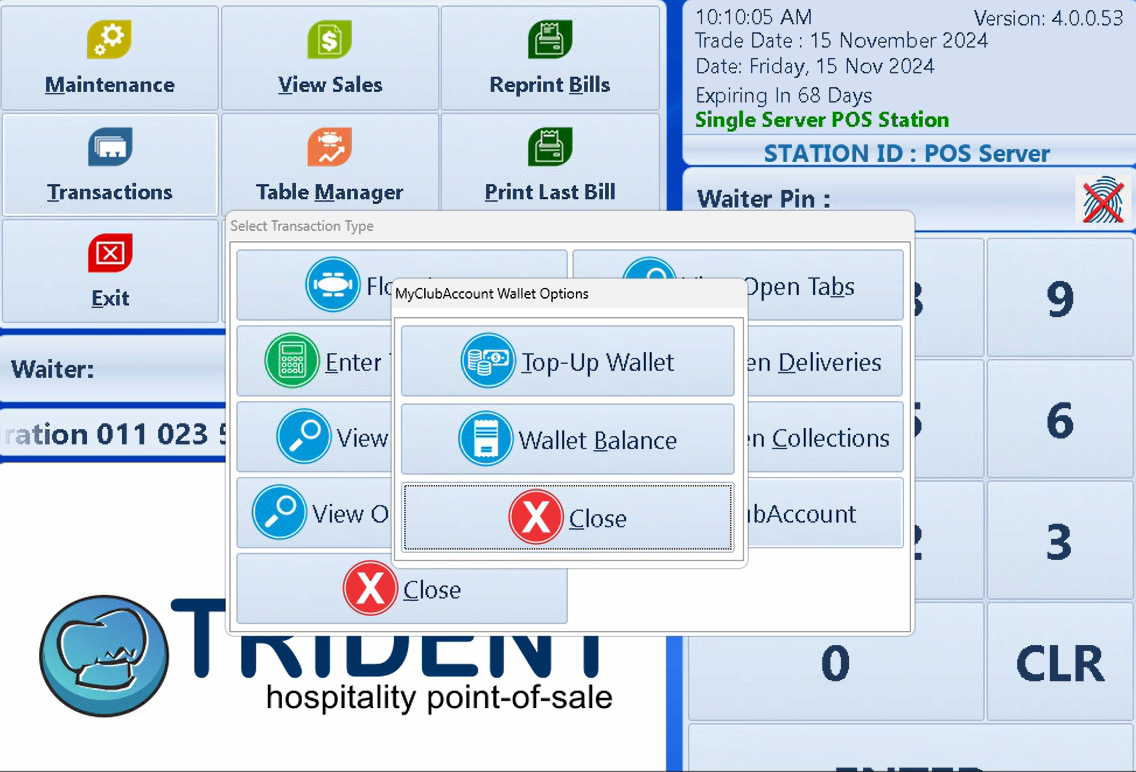
In Trident, select Transactions → MyClubAccount → Wallet Balance.
-
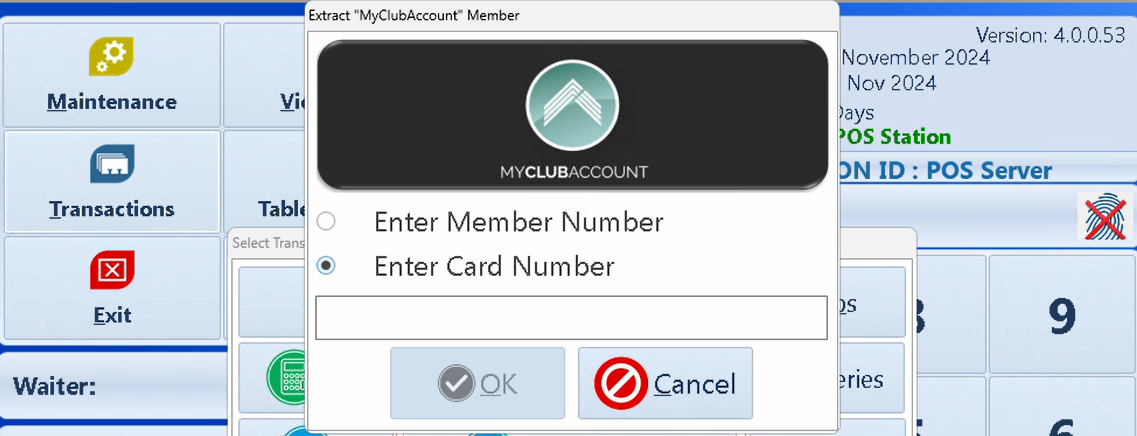
When prompted to search by Member Number or Card Number, choose Card Number.
-
Ask the member to tap their card on the reader; the card number auto-fills.
-
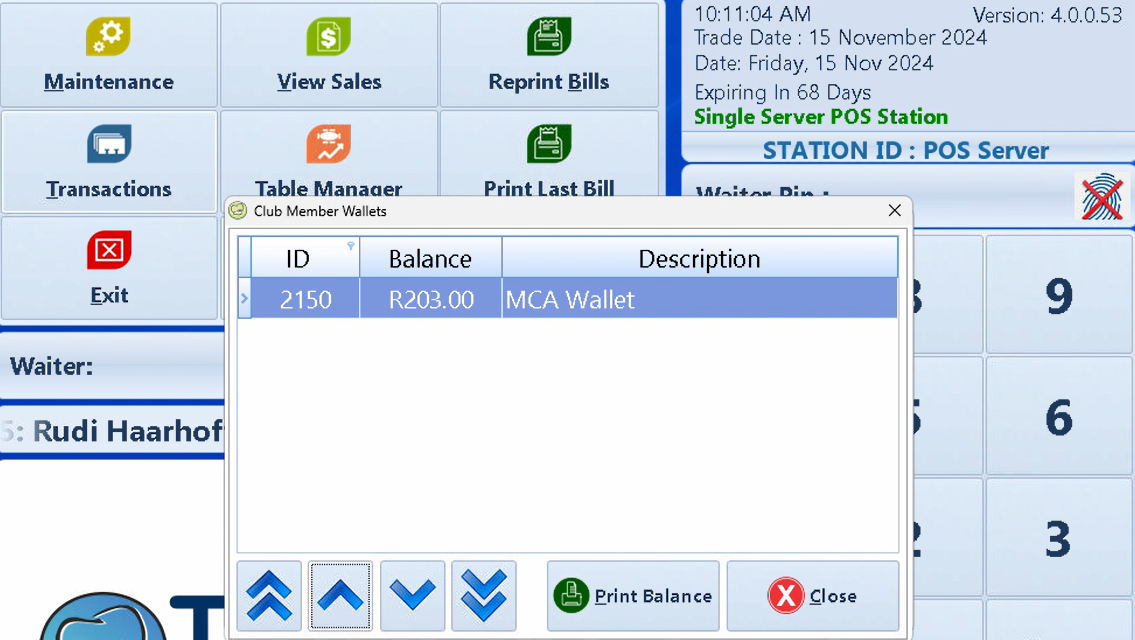
Select OK to see the member’s wallet balance.
-
If needed, print the balance slip, which includes the member name and current wallet total.
4. Topping Up the MCA Wallet
-
Go to Transactions → MyClubAccount → Top-Up wallet.
-
When asked to search by Member Number or Card Number, choose Card Number.
-
Have the member tap their card so Trident populates the card number automatically.
-
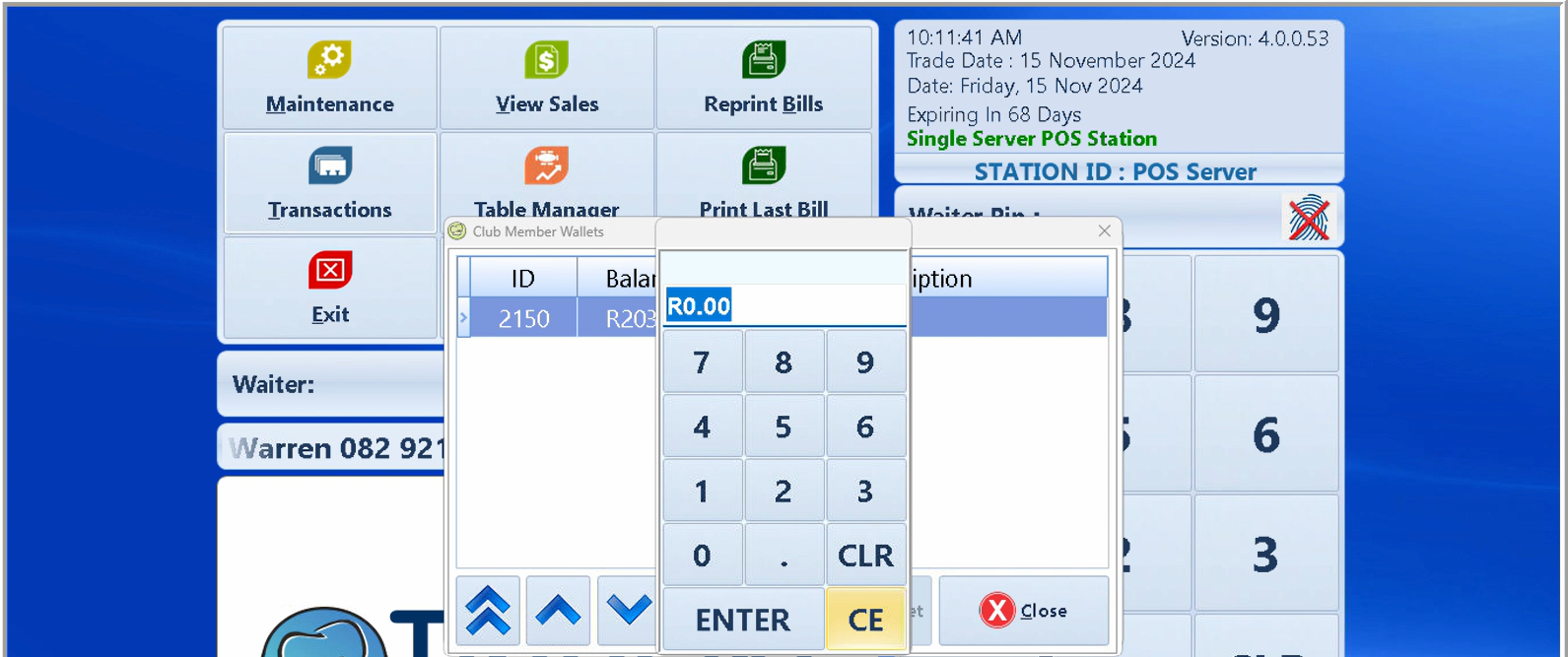
The system displays the Member wallet. Tap Select Wallet to confirm which wallet to top up.
(Reuses the same “card option” image above.)
-
Enter the top-up amount:
-
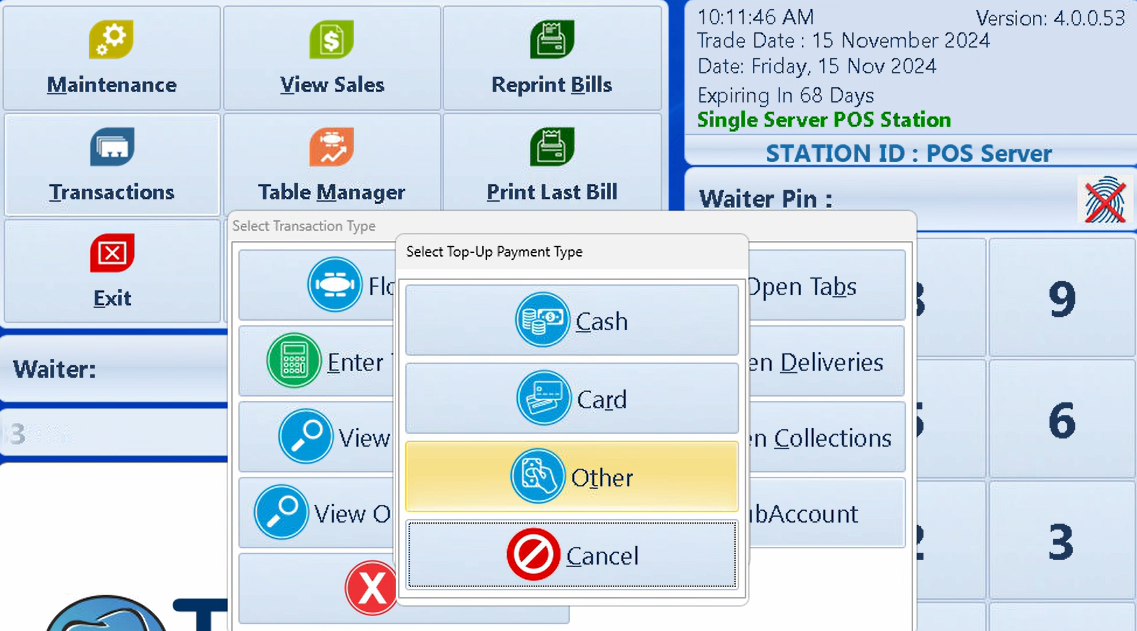
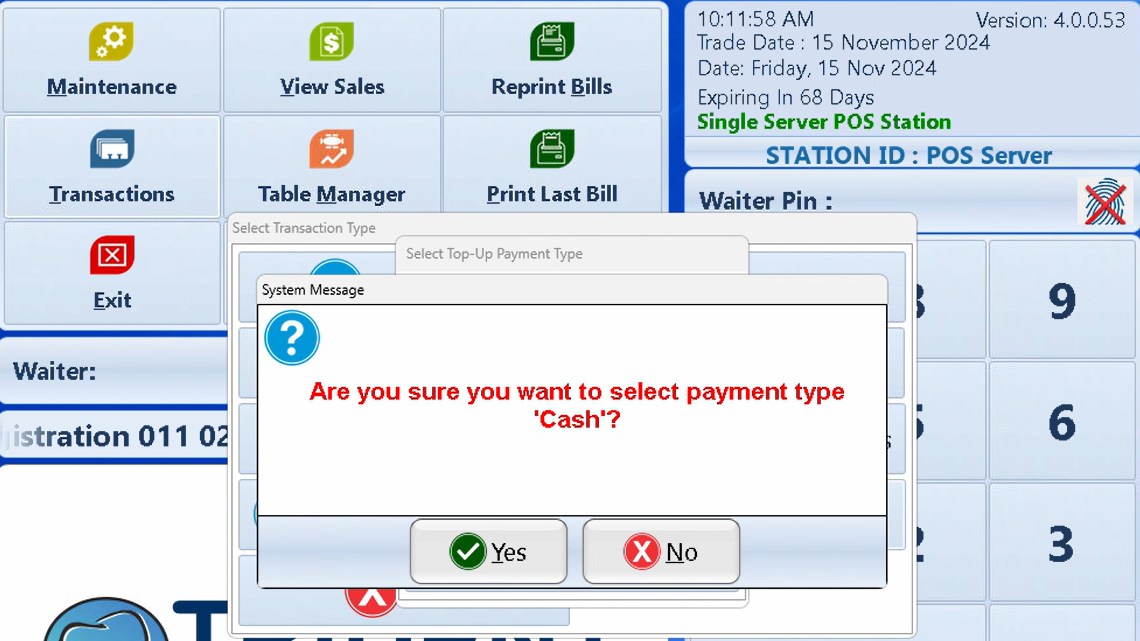
Choose the top-up payment method, such as cash or card, then confirm.
-
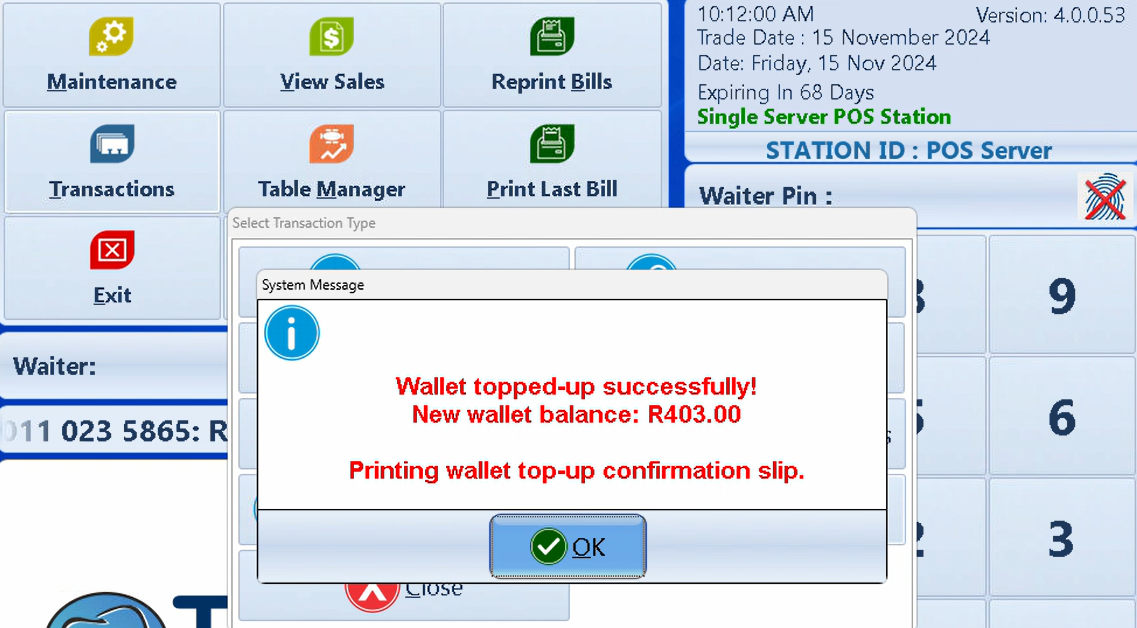
After confirming, you should see a successful top-up message with the updated wallet balance.
Last updated: 2025-06-22