QuickBooks Integration Guide for MCA
This guide explains how to integrate QuickBooks with MCA. It covers the setup steps in MCA’s Accounting Integration Setup, details the required QuickBooks permission scopes, and explains what to expect during the connection process.
1. Pre-Requisites
- MCA Access: Ensure you are logged into MCA with an account that has administration privileges.
- QuickBooks Online Account: Make sure you have an active QuickBooks Online (QBO) account.
- Updated Software: Both MCA and QuickBooks should be updated to their latest versions.
- Permission Scopes: Verify that the integration is granted the necessary permission scopes in QuickBooks (see Section 2).
2. QuickBooks Permission Scopes
When authorizing MCA to connect with QuickBooks, the integration must request the appropriate permission scopes. QuickBooks uses scopes to define which types of data your app can read or update, thereby clarifying the data access granted and increasing transparency with your users during the authorization process.
For this integration, only the following scope is required:
- Accounting Data Access:
- com.intuit.quickbooks.accounting: Grants access to the QuickBooks Online Accounting API, which focuses on accounting data such as invoices, sales receipts, payments, and access to customer and vendor information.
Note: For the most accurate and up-to-date scope names, please refer to the QuickBooks Online API documentation on scopes. It is recommended to request only the scopes your app currently needs and to update them incrementally as your application’s data requirements evolve.
3. Step-by-Step Integration Process
Step 1. Log In and Navigate to Integration Setup
- Log in to MCA:
Use your administrator credentials to log in to the MCA portal. - Access Administration:
From the main menu, navigate to the Administration section. - Enter ClubAdmin Submenu:
In Administration, select the ClubAdmin submenu. - Select Accounting Integration Setup:
Click on Accounting Integration Setup.Reference: The integration settings page displays the QuickBooks configuration section.
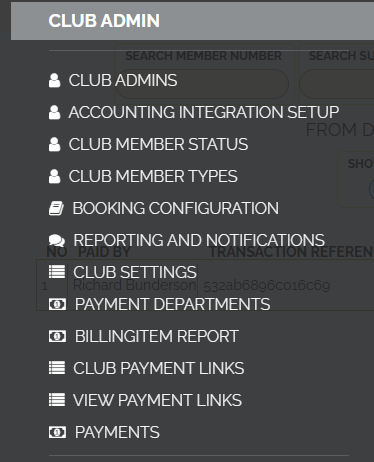
Step 2. Complete the QuickBooks Section in MCA
- Fill Out QuickBooks Settings:
In the integration setup, locate the QuickBooks (QB) section. - Choose Your Integration Option:
- Use MCA Wallet: Check this option if you want MCA to manage payments using the existing MCA wallet.
- Create a Second QuickBooks Customer: Alternatively, set up QuickBooks to create a second customer record for Clubcard transactions.
Reference: The QB settings page provides these options.
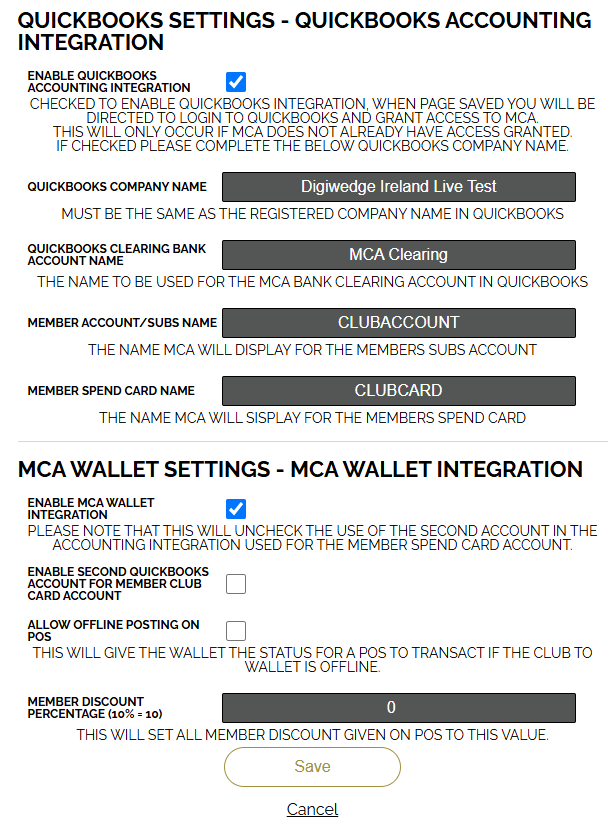
- Save Your Settings:
Click Save. MCA will then initiate a redirect to handle QuickBooks authorization.Reference: The redirect screen appears to process the connection.
Step 3. QuickBooks Login and Authorization
- Redirect and Login:
- If you are already logged in to QuickBooks on your browser, you might see a connection screen or a login prompt.
Reference:
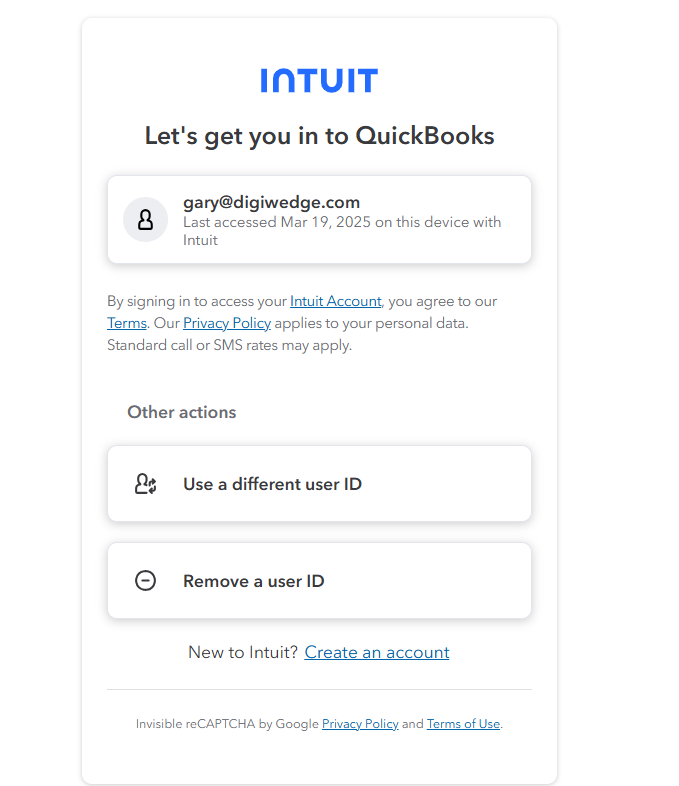
or, in some cases:
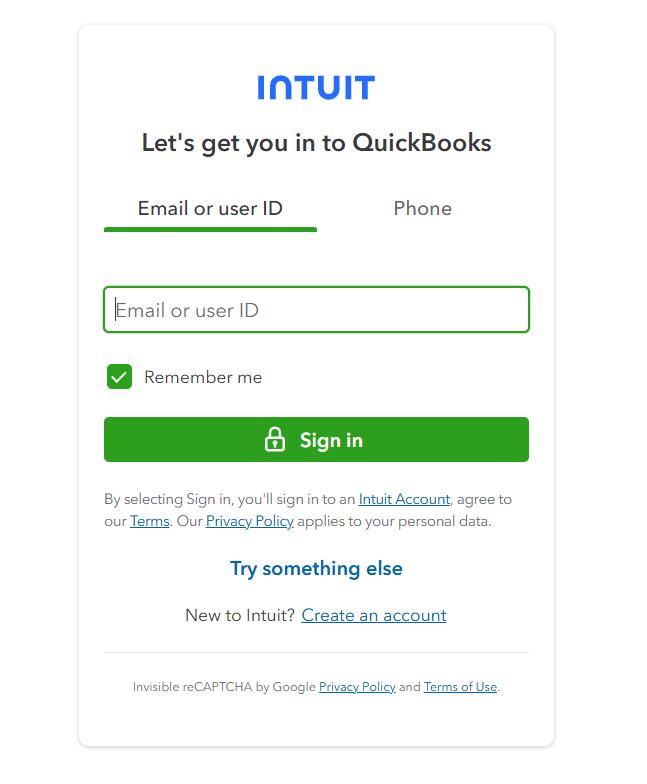
- If you are already logged in to QuickBooks on your browser, you might see a connection screen or a login prompt.
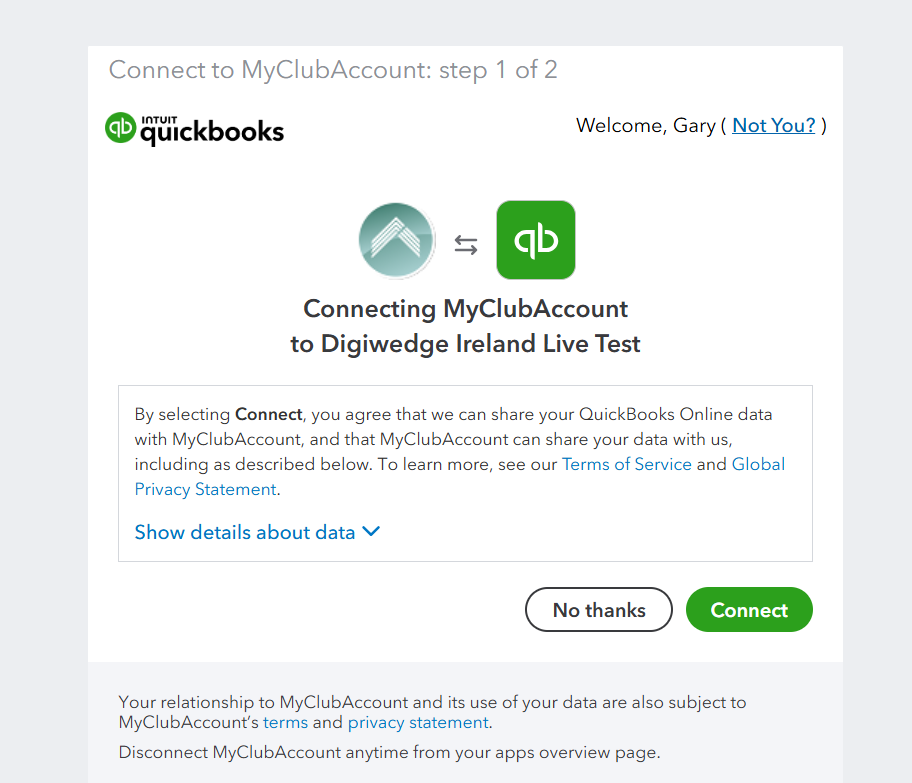
- Authorize MCA:
Once logged in, you will land on the QuickBooks connection page. Click Connect to grant MCA access to your QuickBooks account.
Step 4. Finalize the Integration
- Integration Complete:
After successful authorization, MCA will display a confirmation screen indicating that the connection is complete.
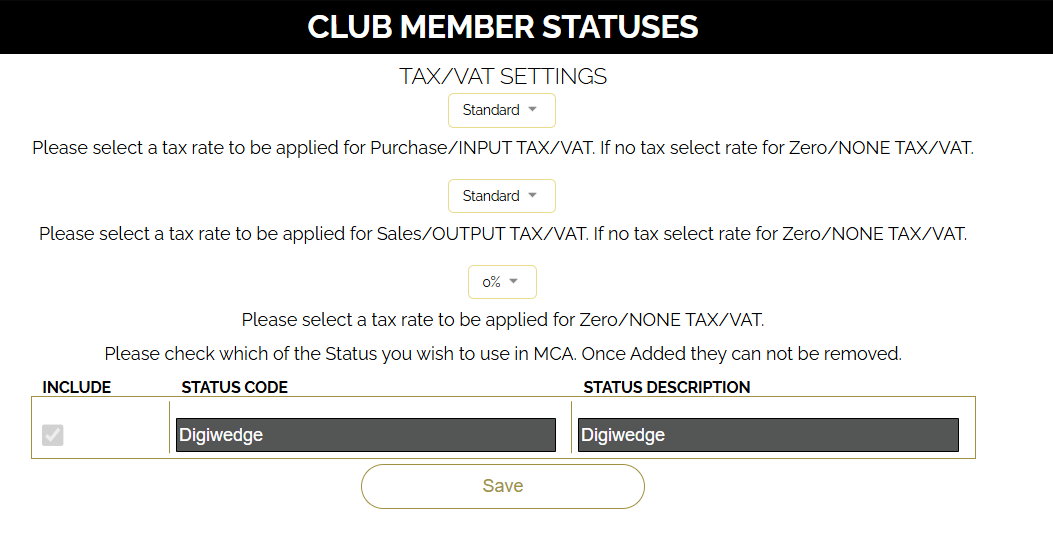
- Select Default Taxes:
In the setup screen, select the default tax settings from the dropdown. Once connected, the dropdown will populate with tax options retrieved from QuickBooks. - Finish Setup:
Confirm and finalize your configuration. Your QuickBooks integration is now ready to use with MCA.
4. Troubleshooting & Tips
- Permission Issues:
If QuickBooks does not grant the necessary permissions, review your app configuration in the QuickBooks developer portal and ensure all required scopes are requested. - Redirect/Login Problems:
- Clear your browser cache or try a different browser if the QuickBooks login screen does not appear as expected.
- Verify that no pop-up blockers or similar settings interfere with the redirection.
- Tax Options Not Displaying:
If the default tax dropdown remains empty, double-check your QuickBooks account settings to ensure tax details are set up and that MCA has the appropriate permissions to access them. - Integration Not Completing:
Check MCA and QuickBooks logs for any error messages. Ensure your QuickBooks account is active and that the API credentials in MCA are current.
For further support, refer to the QuickBooks Online API documentation and MCA’s support resources.
Last updated: 2025-06-22