Microsoft Teams Notification Setup
Overview
Purpose
This guide explains how to set up and configure Microsoft Teams notifications for critical system alerts using the Microsoft Graph API and Teams Activity Feed. By completing this setup, your application can send notifications directly to Teams users, enhancing system observability and response times.
Objective
- Create an Microsoft Entra ID App Registration.
- Grant the necessary API permissions to interact with Microsoft Graph.
- Generate access tokens for authenticated requests.
- Configure the Teams Activity Feed Client in your application.
- Test the flow to ensure successful notifications.
flowchart TD
    A[App Registration] --> B[API Permissions]
    B --> C[Generate Client Secret]
    C --> D[Graph API Notification to Teams]
1. Why This is Important (Context for the Setup)
- Real-Time Alerts – Send critical system alerts directly to users' Teams activity feed.
- Automated Incident Response – Trigger notifications based on errors, downtime, or other significant system events.
- Integrates with Monitoring – Connect to existing observability platforms (e.g., Prometheus, Datadog) to notify users when issues occur.
- No External Notification Tools – Use the native Microsoft ecosystem without relying on third-party notification services.
2. Key Components (Objects in the Setup)
1. Microsoft Entra ID (AAD) App Registration
Purpose: Allows your app to authenticate with Microsoft Graph and gain permission to send notifications.
Object: The app acts as an identity for your service, similar to a service account.
Microsoft Entra App Registration
2. Graph API Permissions
Purpose: Grants access to Microsoft Graph endpoints to perform actions like sending Teams notifications.
Object: Defines the allowed operations (e.g., TeamsActivity.Send).
| Permission Name | Description |
|---|---|
| User.Read.All | Read user information |
| TeamsActivity.Send | Send notifications to Teams activity feed |
3. Client Secret (App Credentials)
Purpose: Serves as the app's password, allowing secure authentication with Microsoft Graph.
Object: A secret string, stored securely, used during token requests.
4. Teams Activity Feed Client (In-App Configuration)
Purpose: The client in your application that constructs and sends notifications.
Object: A code component (e.g., TeamsActivityFeedClient) that wraps Graph API calls.
3. Initial Setup (High-Level Steps)
- Azure Active Directory App Registration – Create the app in AAD.
- Configure API Permissions – Grant Graph API access to send Teams notifications.
- Generate Client Secret – Create a secure token for authentication.
- Environment Configuration – Store credentials in .env or secrets vaults.
- Develop Notification Flow – Implement notification logic in your app using the TeamsActivityFeedClient.
4. Detailed Walkthrough (Actionable Steps)
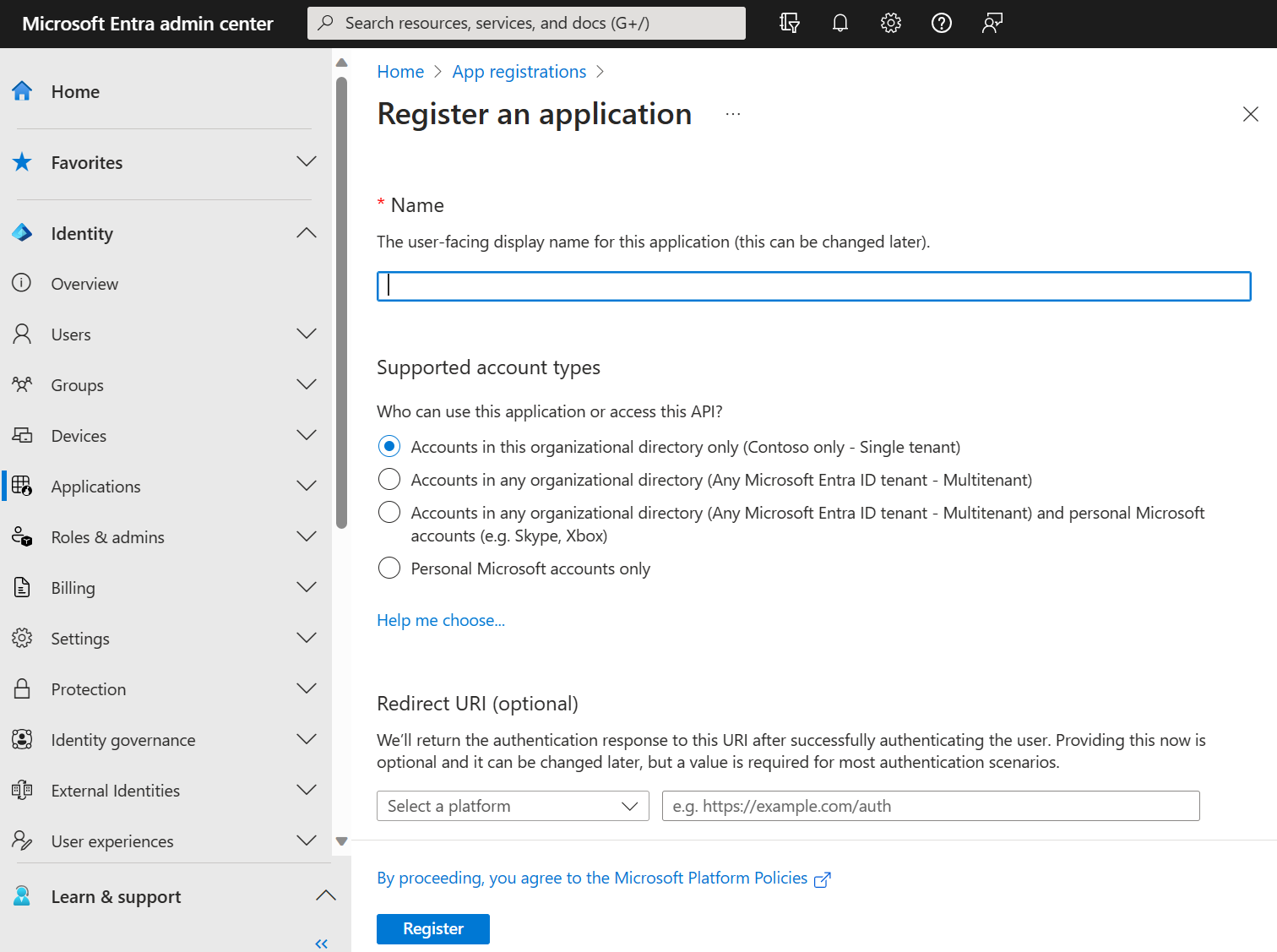
Step 1: App Registration (Microsoft Entra Portal)
Microsoft Entra App Registration
- Go to Microsoft Entra ID → App Registrations → Click New Registration.
- Fill in the following:
- Name – TeamsNotificationApp
- Supported Account Types – Select Single Tenant.
- Redirect URI – (Optional, for OAuth workflows)
- Click Register.
Step 2: Add API Permissions
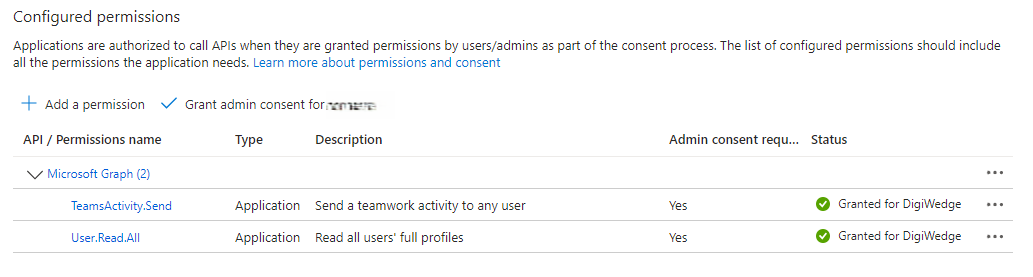
- In your app registration, go to API Permissions → Add a Permission.
- Select Microsoft Graph → Application Permissions.
- Add the following permissions:
- User.Read.All – Read user information.
- TeamsActivity.Send – Send notifications to Teams activity feed.
- Click Grant Admin Consent to apply the permissions.
Step 3: Generate Client Secret
- In Certificates & Secrets, click New Client Secret.
- Set expiration (e.g., 12 months) and click Add.
- Copy the Value immediately – this is your CLIENT_SECRET.
5. Testing the Setup
-
Use Postman or a similar tool to generate an access token:
curl -X POST -H "Content-Type: application/x-www-form-urlencoded" \
-d 'client_id=YOUR_CLIENT_ID&scope=https://graph.microsoft.com/.default&client_secret=YOUR_CLIENT_SECRET&grant_type=client_credentials' \
https://login.microsoftonline.com/YOUR_TENANT_ID/oauth2/v2.0/token -
Use the token to send a notification via the Graph API:
curl -X POST https://graph.microsoft.com/v1.0/users/USER_ID/activities \
-H "Authorization: Bearer ACCESS_TOKEN" \
-H "Content-Type: application/json" \
-d '{ "topic": { "source": "text", "value": "Alert" }, "activityType": "activity", "previewText": "System Alert Triggered" }' -
Verify the notification appears in Teams.
6. Next Steps
- Automate token generation and notification dispatch.
- Integrate with monitoring platforms like Prometheus or Datadog.
- Implement retry logic and error handling for notification failures.
For further assistance, visit DigiWedge Documentation.
Last updated: 2025-06-22